How do I enable 2FA to access the Partner Console?
When you enable the 2FA Policy, all Partner Console users who authenticate using a username and password will be required to install and configure an app on their mobile phones, such as Google Authenticator or Microsoft Authenticator, so that they can log in to the platform using a temporary code automatically generated on their mobile phone.
To enable the 2FA Policy for your company in the Cyber Guardian Partner Console, follow steps 1 to 6 below:
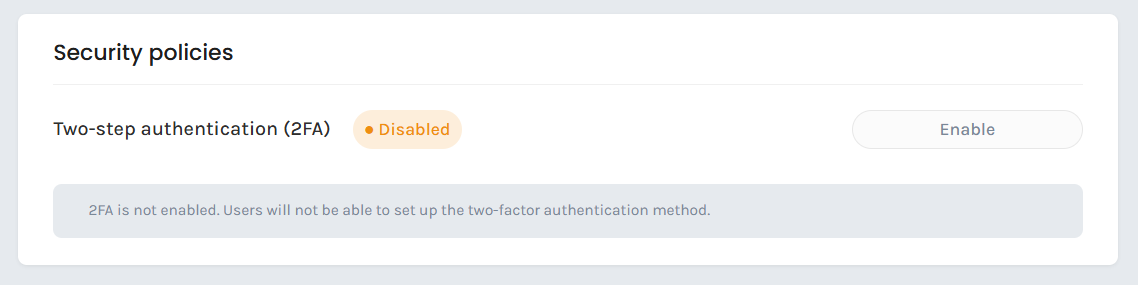
1. Enable the 2FA Policy under Settings > Company. Press the Enable button.
2. Log out, return to the Login screen and enter your username and password. You will then see a screen like this.
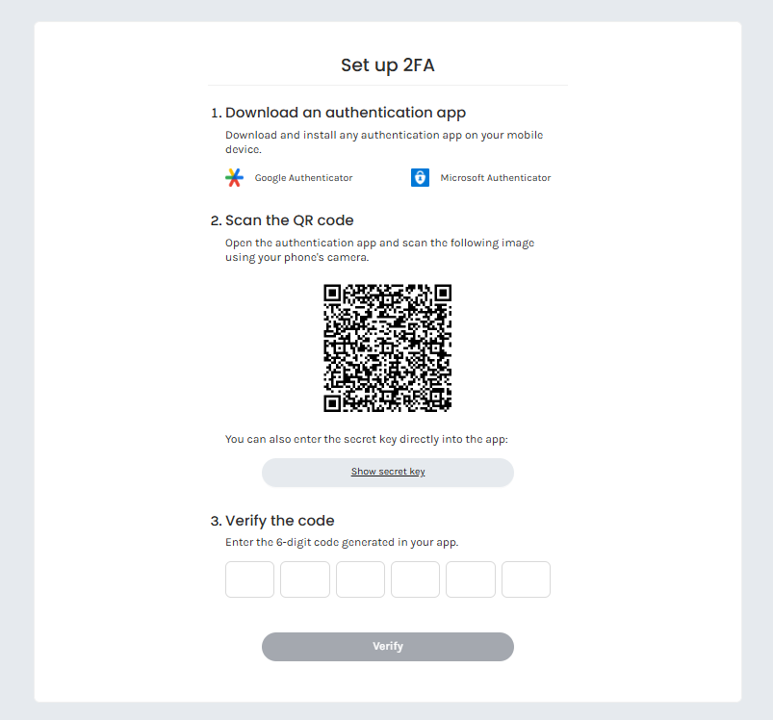
3. Download and install the Google Authenticator or Microsoft Authenticator app on your mobile phone from the Google Play Store if you have an Android phone, or from the Apple App Store if you have an iOS phone.
4. Use the app to scan the QR code displayed on the screen. You can also use the app's secret key. Once you have done this, you will see that a connection to Cyber Guardian and your username has been created in the app, displaying a six-digit OTP (One-Time Password) that changes periodically.
5. Enter the OTP displayed in the app in the previous window. Your 2FA is now configured.
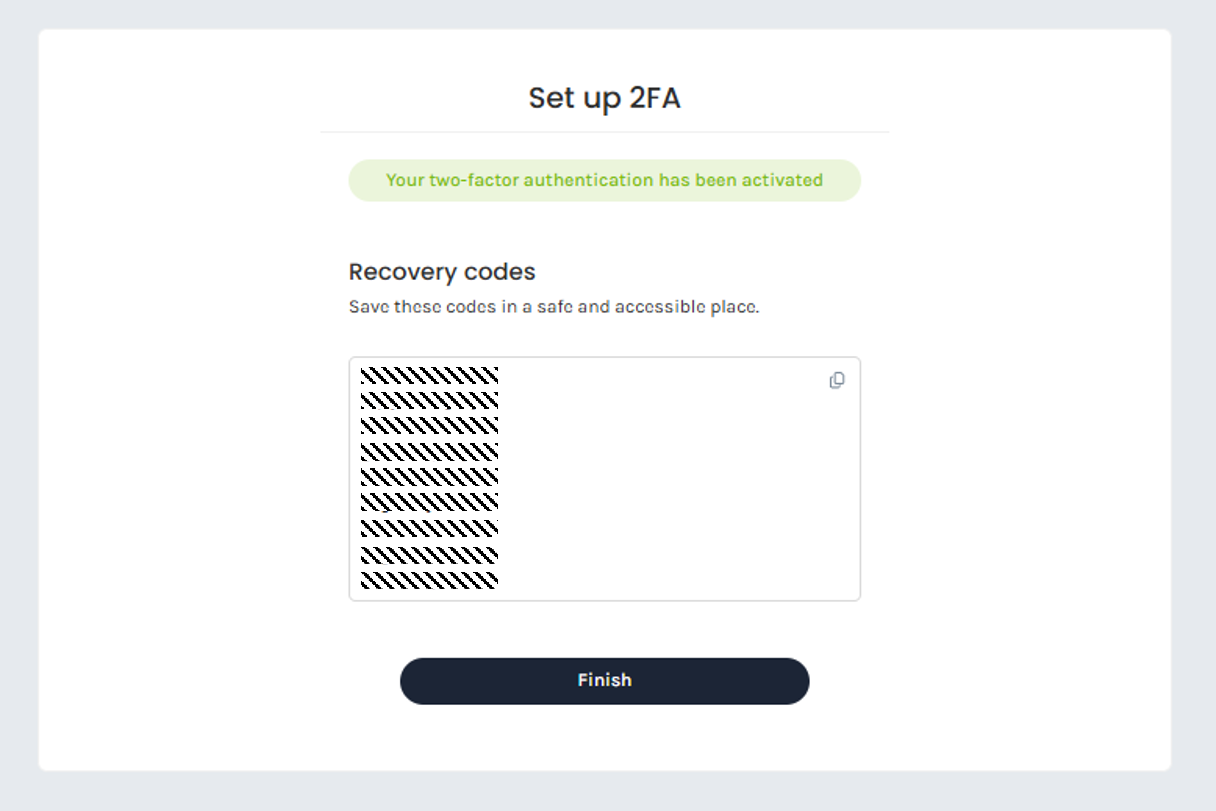
6. Recovery codes: You will see the following confirmation screen with nine personal, single-use recovery codes. Store these recovery codes in a secure location separate from your mobile phone (in case you are unable to access the six-digit OTP on your mobile phone at any point).
You now have access to the Partner Console via 2FA, and if you return to Settings > Company, you can verify that the 2FA policy is enabled for your company.
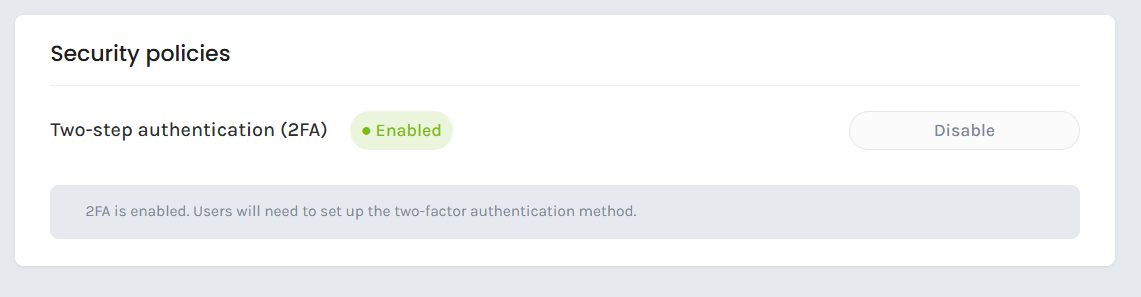
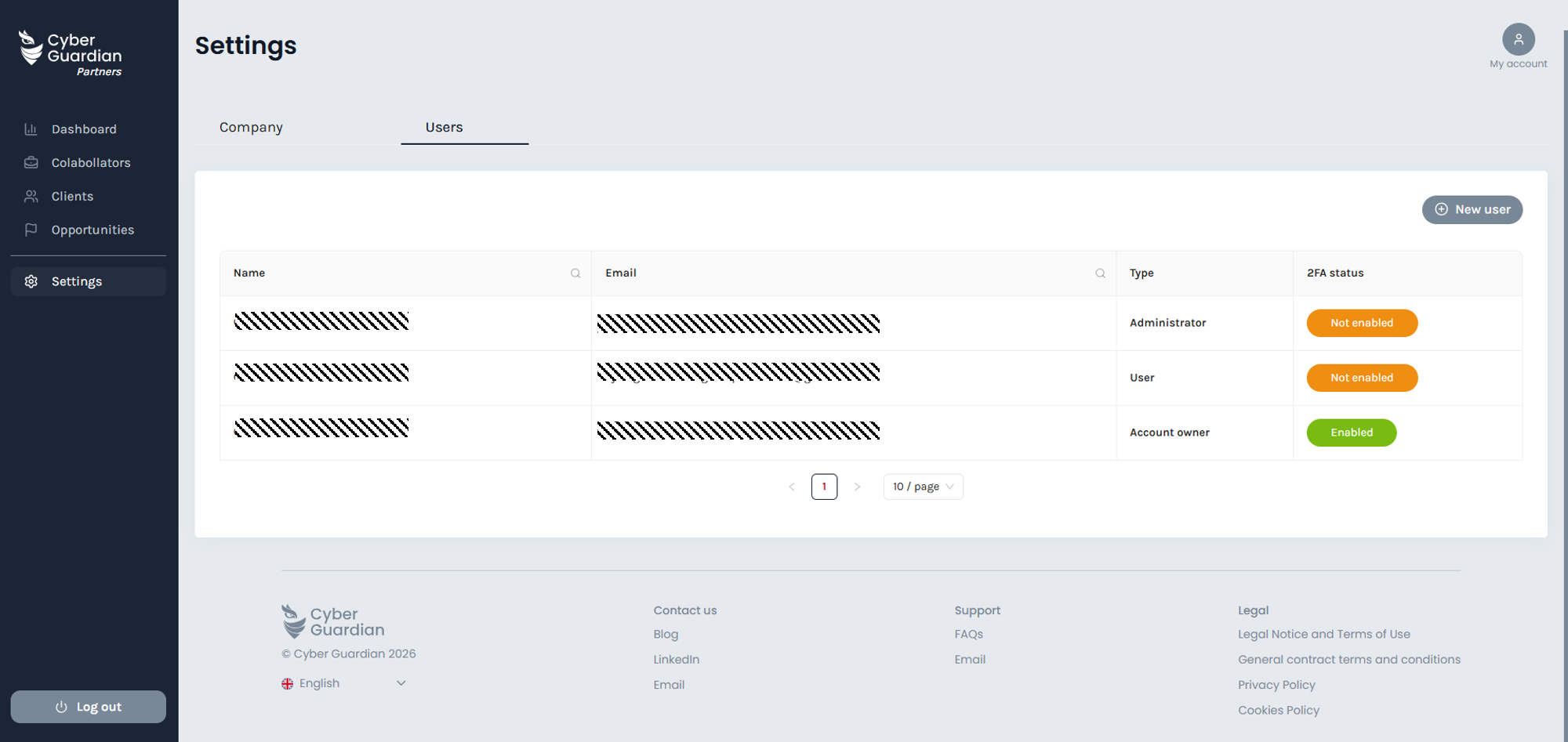
If you return to Settings > Users, you will see that 2FA is also enabled for your user account. Other existing users will need to enable it the next time they log in.
Once 2FA is set up, here’s what will happen each time you log in to the Partner Console with your user account.